Sandbox
AgentScope Runtime’s Sandbox is a versatile tool that provides a secure and isolated environment for a wide range of operations, including tool execution, browser automation, and file system operations. This tutorial will empower you to set up the tool sandbox dependency and run tools in an environment tailored to your specific needs.
Prerequisites
Note
The current sandbox supports multiple backend isolation/runtime options. For local usage, you can use Docker (optionally with gVisor) or BoxLite. For large-scale remote/production deployments, we recommend Kubernetes (K8s), Function Compute (FC), or Alibaba Cloud ACK. You can also switch the backend by setting the CONTAINER_DEPLOYMENT environment variable (default: docker).
Warning
For Apple Silicon devices (such as M1/M2), we recommend the following options to run an x86 Docker environment for maximum compatibility:
Docker Desktop: Please refer to the Docker Desktop installation guide to enable Rosetta 2, ensuring compatibility with x86_64 images.
Colima: Ensure that Rosetta 2 support is enabled. You can start Colima with the following command to achieve compatibility:
colima start --vm-type=vz --vz-rosetta --memory 8 --cpu 1
Docker (optionally with gVisor) or BoxLite (local)
(Optional, remote/production, choose as needed) Kubernetes (K8s) / Function Compute (FC) / Alibaba Cloud ACK
Setup
Install Dependencies
First, install AgentScope Runtime:
pip install agentscope-runtime
Prepare the Docker Images
The sandbox uses different Docker images for various functionalities. You can pull only the images you need or all of them for complete functionality:
Option 1: Pull All Images (Recommended)
To ensure a complete sandbox experience with all features enabled, follow the steps below to pull and tag the necessary Docker images from our repository:
Note
Image Source: Alibaba Cloud Container Registry
All Docker images are hosted on Alibaba Cloud Container Registry (ACR) for optimal performance and reliability worldwide. Images are pulled from ACR and tagged with standard names for seamless integration with the AgentScope runtime environment.
# Base image
docker pull agentscope-registry.ap-southeast-1.cr.aliyuncs.com/agentscope/runtime-sandbox-base:latest && docker tag agentscope-registry.ap-southeast-1.cr.aliyuncs.com/agentscope/runtime-sandbox-base:latest agentscope/runtime-sandbox-base:latest

# GUI image
docker pull agentscope-registry.ap-southeast-1.cr.aliyuncs.com/agentscope/runtime-sandbox-gui:latest && docker tag agentscope-registry.ap-southeast-1.cr.aliyuncs.com/agentscope/runtime-sandbox-gui:latest agentscope/runtime-sandbox-gui:latest

# Filesystem image
docker pull agentscope-registry.ap-southeast-1.cr.aliyuncs.com/agentscope/runtime-sandbox-filesystem:latest && docker tag agentscope-registry.ap-southeast-1.cr.aliyuncs.com/agentscope/runtime-sandbox-filesystem:latest agentscope/runtime-sandbox-filesystem:latest

# Browser image
docker pull agentscope-registry.ap-southeast-1.cr.aliyuncs.com/agentscope/runtime-sandbox-browser:latest && docker tag agentscope-registry.ap-southeast-1.cr.aliyuncs.com/agentscope/runtime-sandbox-browser:latest agentscope/runtime-sandbox-browser:latest

# Mobile image
docker pull agentscope-registry.ap-southeast-1.cr.aliyuncs.com/agentscope/runtime-sandbox-mobile:latest && docker tag agentscope-registry.ap-southeast-1.cr.aliyuncs.com/agentscope/runtime-sandbox-mobile:latest agentscope/runtime-sandbox-mobile:latest
Option 2: Pull Specific Images
Choose the images based on your specific needs:
Image |
Purpose |
When to Use |
|---|---|---|
Base Image |
Python code execution, shell commands |
Essential for basic tool execution |
GUI Image |
Computer Use |
When you need a graph UI |
Filesystem Image |
File system operations |
When you need file read/write/management |
Browser Image |
Web browser automation |
When you need web scraping or browser control |
Mobile Image |
Mobile operations |
When you need to operate a mobile device |
Training Image |
Training and evaluating agent |
Used for training and evaluating agent on some benchmark (see Training Sandbox for details) |
Verify Installation
You can verify that everything is set up correctly by calling run_ipython_cell:
import json
from agentscope_runtime.sandbox import BaseSandbox

with BaseSandbox() as sandbox:
    # Model Context Protocol (MCP)-compatible tool call results
    result = sandbox.run_ipython_cell(code="print('Setup successful!')")
    print(json.dumps(result, indent=4, ensure_ascii=False))
(Optional) Built the Docker Images from Scratch
If you prefer to build the Docker images yourself or need custom modifications, you can build them from scratch. Please refer to Advanced Usage of Tool Sandbox for detailed instructions.
Sandbox Usage
Create a Sandbox
The previous section introduced tool-centred usage methods, while this section introduces sandbox-centred usage methods.
You can create different types of sandboxes via the sandbox SDK. AgentScope Runtime provides both synchronous and asynchronous versions for each sandbox type:
Synchronous Class |
Asynchronous Class |
|---|---|
|
|
|
|
|
|
|
|
|
|
|
- |
|
- |
Base Sandbox: Use for running Python code or shell commands in an isolated environment.
# --- Synchronous version ---
from agentscope_runtime.sandbox import BaseSandbox

with BaseSandbox() as box:
    # By default, pulls `agentscope/runtime-sandbox-base:latest` from DockerHub
    print(box.list_tools()) # List all available tools
    print(box.run_ipython_cell(code="print('hi')"))  # Run Python code
    print(box.run_shell_command(command="echo hello"))  # Run shell command
    input("Press Enter to continue...")

# --- Asynchronous version ---
from agentscope_runtime.sandbox import BaseSandboxAsync

async with BaseSandboxAsync() as box:
    # Default image is `agentscope/runtime-sandbox-base:latest`
    print(await box.list_tools_async())  # List all available tools
    print(await box.run_ipython_cell(code="print('hi')"))  # Run Python code
    print(await box.run_shell_command(command="echo hello"))  # Run shell command
    input("Press Enter to continue...")
GUI Sandbox: Provides a virtual desktop environment for mouse, keyboard, and screen operations.

# --- Synchronous version ---
from agentscope_runtime.sandbox import GuiSandbox

with GuiSandbox() as box:
    # By default, pulls `agentscope/runtime-sandbox-gui:latest` from DockerHub
    print(box.list_tools())  # List all available tools
    print(box.desktop_url)  # Web desktop access URL
    print(box.computer_use(action="get_cursor_position"))  # Get mouse cursor position
    print(box.computer_use(action="get_screenshot"))  # Capture screenshot
    input("Press Enter to continue...")

# --- Asynchronous version ---
from agentscope_runtime.sandbox import GuiSandboxAsync

async with GuiSandboxAsync() as box:
    # Default image is `agentscope/runtime-sandbox-gui:latest`
    print(await box.list_tools_async())  # List all available tools
    print(box.desktop_url)  # Web desktop access URL
    print(await box.computer_use(action="get_cursor_position"))  # Get mouse cursor position
    print(await box.computer_use(action="get_screenshot"))  # Capture screenshot
    input("Press Enter to continue...")
Filesystem Sandbox: A GUI-based sandbox with file system operations such as creating, reading, and deleting files.

# --- Synchronous version ---
from agentscope_runtime.sandbox import FilesystemSandbox

with FilesystemSandbox() as box:
    # By default, pulls `agentscope/runtime-sandbox-filesystem:latest` from DockerHub
    print(box.list_tools())  # List all available tools
    print(box.desktop_url)  # Web desktop access URL
    box.create_directory("test")  # Create a directory
    input("Press Enter to continue...")

# --- Asynchronous version ---
from agentscope_runtime.sandbox import FilesystemSandboxAsync

async with FilesystemSandboxAsync() as box:
    # Default image is `agentscope/runtime-sandbox-filesystem:latest`
    print(await box.list_tools_async())  # List all available tools
    print(box.desktop_url)  # Web desktop access URL
    await box.create_directory("test")  # Create a directory
    input("Press Enter to continue...")
Browser Sandbox: A GUI-based sandbox with browser operations inside an isolated sandbox.

# --- Synchronous version ---
from agentscope_runtime.sandbox import BrowserSandbox

with BrowserSandbox() as box:
    # By default, pulls `agentscope/runtime-sandbox-browser:latest` from DockerHub
    print(box.list_tools())  # List all available tools
    print(box.desktop_url)  # Web desktop access URL
    box.browser_navigate("https://www.google.com/")  # Open a webpage
    input("Press Enter to continue...")

# --- Asynchronous version ---
from agentscope_runtime.sandbox import BrowserSandboxAsync

async with BrowserSandboxAsync() as box:
    # Default image is `agentscope/runtime-sandbox-browser:latest`
    print(await box.list_tools_async())  # List all available tools
    print(box.desktop_url)  # Web desktop access URL
    await box.browser_navigate("https://www.google.com/")  # Open a webpage
    input("Press Enter to continue...")
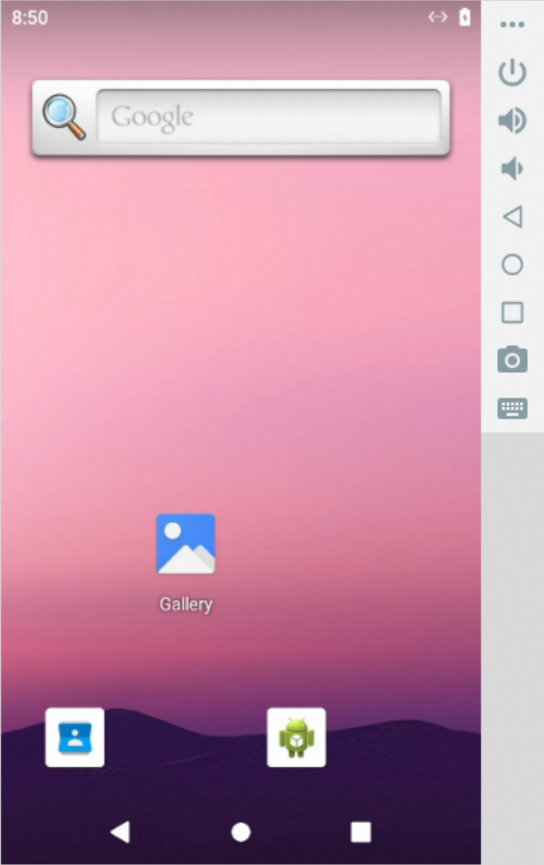
Mobile Sandbox: A sandbox based on an Android emulator, allowing for mobile operations such as tapping, swiping, inputting text, and taking screenshots.
Prerequisites
Linux Host: When running on a Linux host, this sandbox requires the binder and ashmem kernel modules to be loaded. If they are missing, execute the following commands on your host to install and load the required modules:
    # 1. Install extra kernel modules
    sudo apt update && sudo apt install -y linux-modules-extra-`uname -r`

    # 2. Load modules and create device nodes
    sudo modprobe binder_linux devices="binder,hwbinder,vndbinder"
    sudo modprobe ashmem_linux
Architecture Compatibility: When running on an ARM64/aarch64 architecture (e.g., Apple M-series chips), you may encounter compatibility or performance issues. It is recommended to run on an x86_64 host.
# --- Synchronous version ---
from agentscope_runtime.sandbox import MobileSandbox

with MobileSandbox() as box:
    # By default, pulls 'agentscope/runtime-sandbox-mobile:latest' from DockerHub
    print(box.list_tools())  # List all available tools
    print(box.mobile_get_screen_resolution())  # Get the screen resolution
    print(box.mobile_tap([500, 1000]))  # Tap at coordinate (500, 1000)
    print(box.mobile_input_text("Hello from AgentScope!"))  # Input text
    print(box.mobile_key_event(3))  # HOME key event
    screenshot_result = box.mobile_get_screenshot()  # Get screenshot
    print(screenshot_result)
    input("Press Enter to continue...")

# --- Asynchronous version ---
from agentscope_runtime.sandbox import MobileSandboxAsync

async with MobileSandboxAsync() as box:
    # Default image is 'agentscope/runtime-sandbox-mobile:latest'
    print(await box.list_tools_async())  # List all available tools
    print(await box.mobile_get_screen_resolution())  # Get the screen resolution
    print(await box.mobile_tap([500, 1000]))  # Tap at coordinate (500, 1000)
    print(await box.mobile_input_text("Hello from AgentScope!"))  # Input text
    print(await box.mobile_key_event(3))  # HOME key event
    screenshot_result = await box.mobile_get_screenshot()  # Get screenshot
    print(screenshot_result)
    input("Press Enter to continue...")
TrainingSandbox: Sandbox for training and evaluation,please refer to Training Sandbox for details.
from agentscope_runtime.sandbox import TrainingSandbox

# Create a training sandbox
with TrainingSandbox() as box:
    profile_list = box.get_env_profile(env_type="appworld", split="train")
    print(profile_list)
AgentBay Sandbox (AgentbaySandbox): A cloud sandbox implementation based on AgentBay cloud service, supporting multiple image types (Linux, Windows, Browser, CodeSpace, Mobile, etc.).
from agentscope_runtime.sandbox import AgentbaySandbox

# Use AgentBay cloud sandbox (requires API key configuration)
with AgentbaySandbox(
    api_key="your_agentbay_api_key",
    image_id="linux_latest",  # Optional: specify image type
) as box:
    print(box.list_tools())  # List all available tools
    print(box.run_shell_command(command="echo hello from cloud"))
    print(box.get_session_info())  # Get session information
AgentBay Sandbox Features:
No local Docker required, fully cloud-based
Supports multiple environment types (Linux, Windows, Browser, etc.)
Automatic session lifecycle management
Direct API communication with cloud service
Note
More sandbox types are under development—stay tuned!
Add MCP Server to Sandbox
MCP (Model Context Protocol) is a standardised protocol that enables AI applications to securely connect to external data sources and tools. By integrating MCP servers into your sandbox, you can extend the sandbox’s capabilities with specialised tools and services without compromising security.
The sandbox supports integrating MCP servers via the add_mcp_servers method. Once added, you can discover available tools using list_tools and execute them with call_tool. Here’s an example of adding a time server that provides timezone-aware time functions:
with BaseSandbox() as sandbox:
    mcp_server_configs = {
        "mcpServers": {
            "time": {
                "command": "uvx",
                "args": [
                    "mcp-server-time",
                    "--local-timezone=America/New_York",
                ],
            },
        },
    }

    # Add the MCP server to the sandbox
    sandbox.add_mcp_servers(server_configs=mcp_server_configs)

    # List all available tools (now includes MCP tools)
    print(sandbox.list_tools())

    # Use the time tool provided by the MCP server
    print(
        sandbox.call_tool(
            "get_current_time",
            arguments={
                "timezone": "America/New_York",
            },
        ),
    )
Connect to Remote Sandbox
Note
Remote deployment is beneficial for:
Separating comput-intensive tasks to dedicated servers
Multiple clients sharing the same sandbox environment
Developing on resource-constrained local machines while executing on high-performance servers
Deploy sandbox server with K8S
For more advanced usage of sandbox-server, please refer to Advanced Usage of Tool Sandbox for detailed instructions.
You can start the sandbox server on your local machine or on different machines for convenient remote access. You should start a sandbox server via:
runtime-sandbox-server
To connect to the remote sandbox service, pass in base_url:
# Connect to remote sandbox server (replace with actual server IP)
with BaseSandbox(base_url="http://your_IP_address:8000") as box:
    print(box.run_ipython_cell(code="print('hi')"))
Expose Sandbox as an MCP Server
Configure the local Sandbox Runtime as an MCP server named sandbox, so it can be invoked by MCP-compatible clients to safely execute commands from the sandbox via a remote sandbox server http://127.0.0.1:8000.
{
    "mcpServers": {
        "sandbox": {
            "command": "uvx",
            "args": [
                "--from",
                "agentscope-runtime",
                "runtime-sandbox-mcp",
                "--type=base",
                "--base_url=http://127.0.0.1:8000"
            ]
        }
    }
}
Command Arguments
The runtime-sandbox-mcp command accepts the following arguments:
Argument |
Values |
Description |
|---|---|---|
|
|
Type of sandbox |
|
URL string |
Base URL of a remote sandbox service. Leave empty to run locally. |
|
String token |
Optional authentication token for secure access. |
Sandbox Service
Managing Sandboxes with SandboxService
SandboxService provides a unified sandbox management interface, enabling management of sandbox environments across different user sessions via session_id and user_id. Using SandboxService lets you better control a sandbox’s lifecycle and enables sandbox reuse.
from agentscope_runtime.engine.services.sandbox import SandboxService

async def main():
    # Create and start the sandbox service
    sandbox_service = SandboxService()
    await sandbox_service.start()

    session_id = "session_123"
    user_id = "user_12345"

    # Connect to the sandbox, specifying the required sandbox type
    sandboxes = sandbox_service.connect(
        session_id=session_id,
        user_id=user_id,
        sandbox_types=["base"],
    )

    base_sandbox = sandboxes[0]

    # Call utility methods directly on the sandbox instance
    result = base_sandbox.run_ipython_cell("print('Hello, World!')")
    base_sandbox.run_ipython_cell("a=1")

    print(result)

    # Using the same session_id and user_id will reuse the same sandbox instance
    new_sandboxes = sandbox_service.connect(
        session_id=session_id,
        user_id=user_id,
        sandbox_types=["base"],
    )

    new_base_sandbox = new_sandboxes[0]
    # Variable 'a' still exists because the same sandbox is reused
    result = new_base_sandbox.run_ipython_cell("print(a)")
    print(result)

    # Stop the sandbox service
    await sandbox_service.stop()

await main()
Adding an MCP Server Using SandboxService
from agentscope_runtime.engine.services.sandbox import SandboxService

async def main():
    sandbox_service = SandboxService()
    await sandbox_service.start()

    session_id = "session_mcp"
    user_id = "user_mcp"

    sandboxes = sandbox_service.connect(
        session_id=session_id,
        user_id=user_id,
        sandbox_types=["base"],
    )

    sandbox = sandboxes[0]

    mcp_server_configs = {
        "mcpServers": {
            "time": {
                "command": "uvx",
                "args": [
                    "mcp-server-time",
                    "--local-timezone=America/New_York",
                ],
            },
        },
    }

    # Add MCP server to the sandbox
    sandbox.add_mcp_servers(server_configs=mcp_server_configs)

    # List all available tools (now includes MCP tools)
    print(sandbox.list_tools())

    # Use the time tool from the MCP server
    print(
        sandbox.call_tool(
            "get_current_time",
            arguments={
                "timezone": "America/New_York",
            },
        ),
    )

    await sandbox_service.stop()

await main()
Connecting to a Remote Sandbox Using SandboxService
from agentscope_runtime.engine.services.sandbox import SandboxService

async def main():
    # Create SandboxService and specify the remote server address
    sandbox_service = SandboxService(
        base_url="http://your_IP_address:8000",  # Replace with actual server IP
        bearer_token="your_token"  # Optional: if authentication is required
    )
    await sandbox_service.start()

    session_id = "remote_session"
    user_id = "remote_user"

    # Connect to the remote sandbox
    sandboxes = sandbox_service.connect(
        session_id=session_id,
        user_id=user_id,
        sandbox_types=["base"],
    )

    base_sandbox = sandboxes[0]
    print(base_sandbox.run_ipython_cell(code="print('hi')"))

    await sandbox_service.stop()

await main()
Tool List
Base Tools (Available in all sandbox types)
Computer-use Tool (Available in
GuiSandbox)Browser Tools (Available in
BrowserSandbox)Filesystem Tools (Available in
FilesystemSandbox)Mobile Tools (Available in
MobileSandbox)
Category |
Tool Name |
Description |
|---|---|---|
Base Tools |
|
Execute Python code in an IPython environment |
|
Execute shell commands in the sandbox |
|
Filesystem Tools |
|
Read the complete contents of a file |
|
Read multiple files simultaneously |
|
|
Create or overwrite a file with content |
|
|
Make line-based edits to a text file |
|
|
Create a new directory |
|
|
List all files and directories in a path |
|
|
Get recursive tree view of directory structure |
|
|
Move or rename files and directories |
|
|
Search for files matching a pattern |
|
|
Get detailed metadata about a file or directory |
|
|
List directories the server can access |
|
Browser Tools |
|
Navigate to a specific URL |
|
Go back to the previous page |
|
|
Go forward to the next page |
|
|
Close the current browser page |
|
|
Resize the browser window |
|
|
Click on a web element |
|
|
Type text into an input field |
|
|
Hover over a web element |
|
|
Drag and drop between elements |
|
|
Select options in a dropdown |
|
|
Press a keyboard key |
|
|
Upload files to the page |
|
|
Capture accessibility snapshot of the current page |
|
|
Take a screenshot of the page or element |
|
|
Save the current page as PDF |
|
|
List all open browser tabs |
|
|
Open a new tab |
|
|
Switch to a specific tab |
|
|
Close a tab (current tab if index not specified) |
|
|
Wait for conditions or time to pass |
|
|
Get all console messages from the page |
|
|
Get all network requests since page load |
|
|
Handle browser dialogs (alert, confirm, prompt) |
|
Computer Use Tools |
|
Use a mouse and keyboard to interact with a desktop GUI, supporting actions like moving the cursor, clicking, typing, and taking screenshots |
Mobile Tools |
|
Get the screen resolution of the mobile device |
|
Tap at a specific coordinate on the screen |
|
|
Perform a swipe gesture on the screen from a start point to an end point |
|
|
Input a text string into the currently focused UI element |
|
|
Send a key event to the device (e.g., HOME, BACK) |
|
|
Take a screenshot of the current device screen |