WebUI
In WebUI, there are mainly four ways to call an Agent:
Use the hosted WebUI (recommended, no installation)
Start the Agent in Python and enable the WebUI
Start directly using
npxInstall locally and start the development environment
Before you begin, we assume you have already deployed your Agent.
For example, if it’s deployed at localhost:8090, the WebUI will call it via the process endpoint, so the full request URL will be: http://localhost:8090/process
This guide also requires a Node.js environment along with npm or npx (only needed for Method 2/3/4). Please make sure they are properly installed.
Method 1 (Recommended): Use the Hosted WebUI (No Installation)
If you don’t want to install or run the WebUI locally, we recommend using the hosted WebUI directly:
http://webui.runtime.agentscope.io/
Open the page in your browser, and set your Agent endpoint to your deployed process URL, for example:
http://localhost:8090/process
Method 2: Start the Agent Directly in Python and Enable the WebUI
This approach is suitable for running the Agent directly in a Python environment and enabling the built‑in WebUI. You only need to ensure that the Agent’s required environment and API key have been properly configured.
from agentscope_runtime.engine import AgentApp

agent_app = AgentApp(
    app_name="Friday",
    app_description="A helpful assistant",
)
# Agent construction logic omitted here

# Start the service and enable the WebUI at the same time
agent_app.run(host="127.0.0.1", port=8090, web_ui=True)
Method 3: Quick Start via npx
If you just want to try it out quickly or don’t need to modify code, you can simply run the following command in your terminal:
npx @agentscope-ai/chat agentscope-runtime-webui --url http://localhost:8090/process
Note: Make sure the URL matches your Agent’s deployment address.
Once executed, the frontend service will start at:
http://localhost:5173
Open http://localhost:5173 in your browser, and you can enter the WebUI to interact with your Agent via a chat interface.
Method 4: Local Installation and Startup (for development and customization)
If you plan to go deeper into development or want to customize the WebUI, you can start a local environment in the AgentScope-Runtime web/starter_webui directory:
# Go to the WebUI startup directory
cd web/starter_webui

# Install dependencies
npm install

# Start the development service
npm run dev
The service will be available at:
http://localhost:5173
Access this address in your browser to open the WebUI and chat with your Agent.
Page Preview
In the WebUI, you can interact with your Agent through a visual interface and even call tools:
Home Page

Chat Page
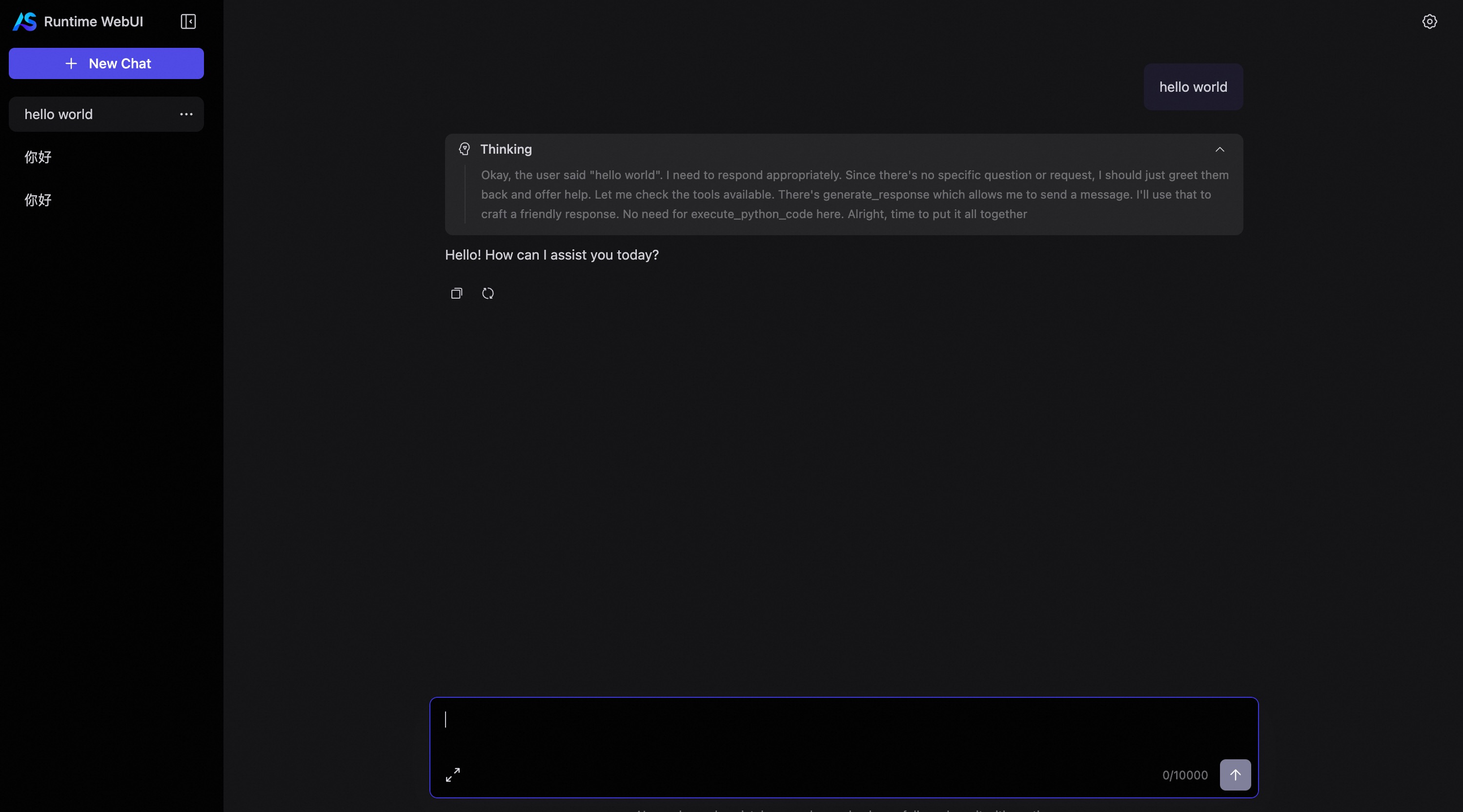
Agent Thinking Process
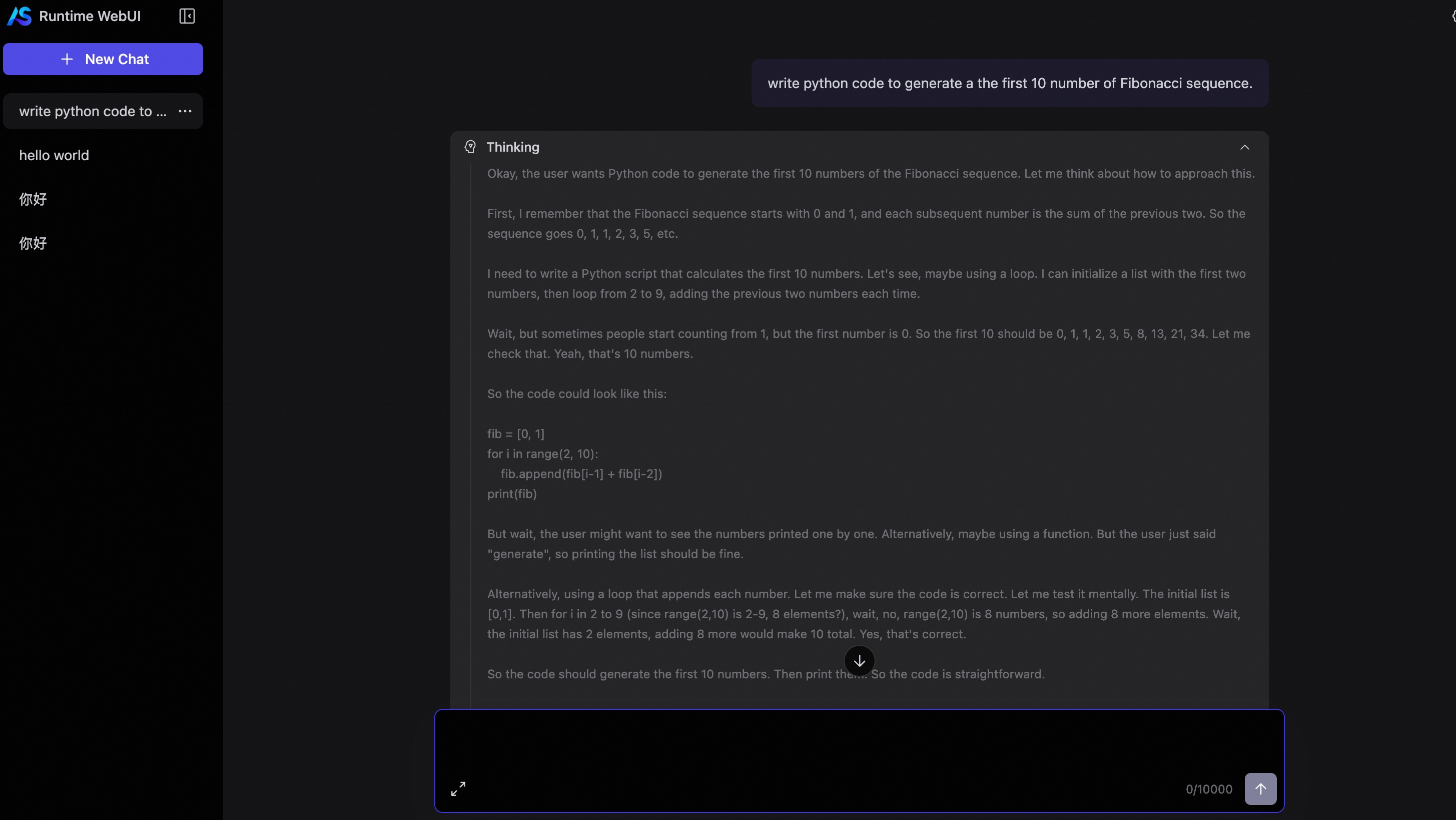
Tool Output Results
